

I usually judge a PDF tool by what happens between receiving a document and getting useful work done with it. Reading is only the first step. The real test is whether I can open a file, understand it, mark the important parts, add my signature when needed, convert it into a more practical format, and pass the finished document to someone else without unnecessary friction. PDF Reader - Smart Viewer, developed by Omareyah Team, is built around that complete workflow rather than treating PDFs as files that can only be viewed.
As a free productivity app for Everyone, it aims at a broad audience: students, office workers, freelancers, families handling forms, and anyone who regularly receives documents on a phone. Its store summary presents it as an all-in-one PDF editor, but I found the more useful way to understand it is as a mobile document station. It combines reading, annotation, signing, and conversion in one place, which can be convenient when the alternative is moving between several separate apps.
The app has a 4.0 average from around 2.2 thousand ratings, with more than a million installs. Those figures suggest that it has reached a substantial everyday audience, although they do not tell me whether every workflow will feel equally polished. The current version is 1.3.2, it was released on September 16, 2025, and it works on Android 8.0 or later. That compatibility makes it accessible to people who are not using a recent phone.
From an incoming document to a finished file
Starting with the document you actually need
My first practical use for PDF Reader - Smart Viewer is the familiar situation where a PDF arrives at an inconvenient moment. It might be an application form, a timetable, a work brief, a receipt, or a document shared through a messaging app. On a phone, the problem is rarely opening the file. The problem is deciding what to do next without losing the original, missing a detail, or sending back an unfinished copy.
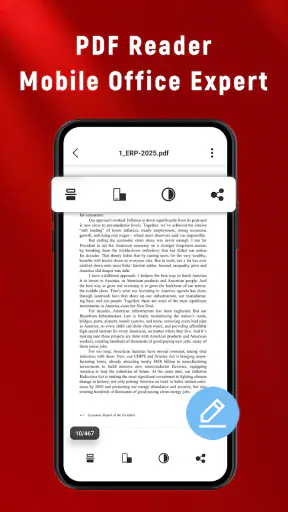
The reader view is the foundation of the experience. I would begin by opening the document and reading it before touching any editing tools. That sounds obvious, but it matters on a small screen: a document that looks simple in a file preview can contain several pages, small notes, signature areas, or instructions hidden near the end. Treating the app as a proper reading workspace helps me inspect the document first instead of immediately changing it.
That initial inspection is also where I decide whether this app is the right tool for the job. A short form or a document that needs a few visual notes is a natural fit. A long technical report that requires deep research, cross-referencing, or complex layout work is a different matter. A phone-based PDF editor can handle quick decisions well, but it should not automatically replace a full desktop document workflow.
Reading without losing the purpose of the file
For ordinary reading, I prefer to keep the original document untouched until I know exactly what needs to happen. That creates a simple mental separation: the source is for reference, while the edited copy is for action. Even when an app makes editing easy, this habit prevents a common mistake—marking up the only copy and then discovering that I need a clean version for another person.
PDF Reader - Smart Viewer is especially useful when I need several kinds of interaction in the same session. I can read the content, annotate a passage, prepare a signature, and think about conversion without immediately jumping into unrelated applications. The main strength is the continuity between these steps, not any single tool considered on its own.
That continuity is valuable for people who work from a phone because mobile handoffs often create small delays. Opening a file in one app, marking it in another, signing it somewhere else, and converting it in a fourth place increases the chance of selecting the wrong copy. Keeping the document journey together makes the process easier to follow.
Annotating with a purpose
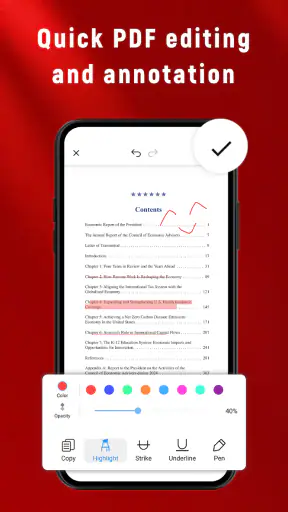
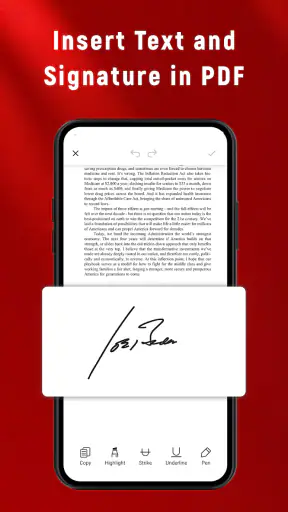
Annotation is most useful when it helps another person understand what changed or what deserves attention. I would use it to point out a missing field, circle a figure that needs checking, underline a sentence for a colleague, or add a short note beside a question. The best mobile markup is not decoration; it is a handoff message attached directly to the page.
One practical tip is to annotate in layers of importance. I first identify the few items that affect the outcome, then add secondary comments only if they prevent confusion. A crowded page may contain plenty of marks but still be difficult to review. On a phone, restraint is even more important because the smaller display makes dense annotations harder to interpret.
This is also where I would be careful with documents that contain sensitive personal or professional information. Before sharing an annotated file, I would read through every page again and check whether a note exposes something that was meant only for me. A visible mark is not the same as removing information from a document, so I would not treat annotation as a substitute for proper redaction when privacy is essential.
Signing at the point where the workflow changes
Signing is often the moment a document moves from preparation to commitment. Before adding a signature, I would confirm that the file is complete, the correct version is open, and all required fields have been addressed. That short pause is important because a signature added to the wrong copy can create more work than the original task.
The signing function makes the app more useful than a basic PDF viewer, particularly for routine forms and approvals handled away from a computer. I can imagine using it when a landlord sends a form while I am travelling, when a school document needs a quick response, or when a small business owner needs to return a signed agreement from a phone.
Still, I would not assume that every organization accepts every type of electronic signature in every situation. The app can help place a signature into a document, but the recipient’s rules may require a particular signing method or additional verification. For low-friction everyday paperwork, this may be enough. For legally sensitive agreements, I would check the recipient’s requirements before relying on a mobile signing step.
Converting only when it improves the handoff
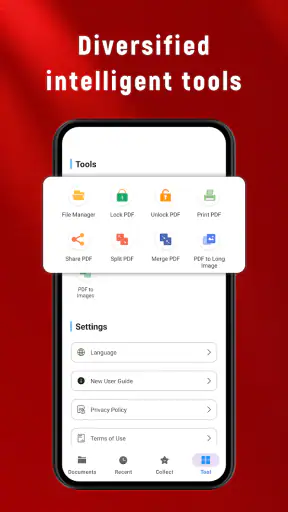
Conversion is another point where the document changes audience. A PDF is often ideal for preserving a layout, but it is not always the easiest format for editing, extracting content, or reusing information. Having conversion available in the same app can save time when I need to move from a fixed document to a more workable one.
My advice is to convert with a clear destination in mind. If I need to preserve the appearance for approval or printing, I would keep the PDF. If I need to reuse text or continue editing, another format may be more practical. Conversion should solve a specific problem rather than become an automatic step in every workflow.
I would also compare the converted result with the original before sending it onward. Layouts can change when content moves between formats, especially around tables, spacing, page breaks, or signatures. The app’s all-in-one approach reduces the number of handoffs, but it does not remove the need for a visual check.
Preparing the file for its next owner
The final stage is not editing; it is delivery. I would review the pages in order, confirm that annotations are readable, check that the signature is positioned correctly, and make sure the converted file is the one I intended to share. This is a small quality-control routine, but it is where many mobile document errors are caught.
That review also answers a question many users have before installing a PDF tool: can it replace a computer? For short, self-contained tasks, PDF Reader - Smart Viewer can make a phone feel surprisingly capable. I can see it replacing a desktop for reading, light markup, signing, and straightforward conversion. I would not replace a full office suite with it for complex formatting, extensive editing, or large document projects.
Where handoffs feel easier
The app’s most convincing use case is a document that passes through several people but needs only modest changes at each stage. Imagine a freelance designer receiving a project brief as a PDF. I would read it, mark the sections that need clarification, sign an attached approval page if required, and return a version that clearly shows the questions. After the client responds, I could keep a clean reference copy and prepare the next file without rebuilding the workflow from scratch.
A student could use a similar process with a course handout: read the assignment, annotate the requirements, sign a submission form, and convert material when a different format is easier to work with. The value is not that the app transforms study habits by itself. The value is that the document stays central while the user moves from understanding to action.
For office work, the strongest advantage is reducing context switching. Instead of treating reading, marking, signing, and conversion as unrelated jobs, the app encourages me to see them as stages in one document journey. That is a useful design choice for people who often work from notifications, shared files, and quick requests rather than from a carefully organized desktop folder.
How it compares with the usual alternatives
A basic PDF reader is usually better if all I want is fast viewing and nothing else. It may feel lighter because it does not ask me to think about editing or conversion. PDF Reader - Smart Viewer makes more sense when I expect the document to require action after reading it.
A dedicated annotation app may be preferable for someone whose main activity is intensive handwriting, detailed study notes, or long-form markup. A specialist signing service may be a better choice when formal identity checks, audit trails, or organization-specific compliance are central. A desktop editor remains the stronger option for precise page design and complicated document restructuring.
Where this app stands out is the middle ground. It is broader than a viewer but less intimidating than building a complete desktop publishing workflow. That makes it appealing for practical, occasional document work. The trade-off is that an all-in-one mobile app may not provide the depth of a specialist tool in every individual area.
Where the workflow breaks
The first point of friction is screen size. Reading a dense document, placing a precise annotation, or checking a signature can be less comfortable on a phone than on a larger display. I would use a tablet or computer when accuracy depends on seeing an entire page clearly, especially for forms with small fields.
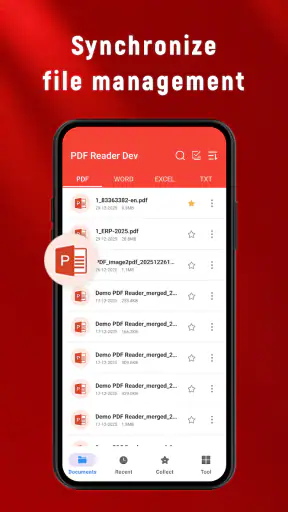
The second limitation is workflow complexity. The more steps a document requires, the more important it becomes to track versions carefully. Reading, annotating, signing, and converting can create several possible copies. I would name or organize those copies deliberately rather than relying on memory, particularly when a document is shared with other people.
Another trade-off is the difference between convenience and specialization. The app’s broad toolset is useful because it keeps common actions together, but users with advanced PDF needs may notice that convenience is not the same as professional depth. If my work depends on elaborate page manipulation or strict document governance, I would choose a tool designed specifically for that requirement.
I would also skip it if I only need a minimal reader and want the simplest possible experience. Installing a broader productivity app can be unnecessary when viewing is the only task. Conversely, I would consider it a good candidate when I repeatedly find myself opening a PDF, searching for a way to mark it, then looking for another application to finish the job.
Who should install it
PDF Reader - Smart Viewer is a sensible choice for people who want one free app for everyday PDF handling on an Android device. It suits users who receive forms, reports, school documents, invoices, or agreements and need more than passive reading. The Everyone age rating also makes it approachable for general household and educational use.
I would recommend it most strongly to someone whose workflow is mobile-first but not highly specialized. That includes a freelancer answering clients between appointments, a student organizing marked documents, a small business owner returning signed paperwork, or a family member handling forms without access to a computer at that moment.
I would be more cautious for professionals who need advanced compliance features, highly precise editing, or a formal signing process defined by an employer or institution. In those cases, this app may still be useful for viewing and preliminary notes, while a dedicated service handles the final stage.
My final take on the complete document journey
After looking at the whole path from incoming file to finished handoff, I see PDF Reader - Smart Viewer as a practical bridge between a simple viewer and a full desktop editor. Its usefulness comes from bringing reading, annotation, signing, and conversion into one productivity-focused app. That combination can remove awkward jumps between tools when a document needs a quick but meaningful response.
It is not the right answer for every PDF problem. Small screens, version confusion, and the limits of a general-purpose mobile editor still matter. I would keep a larger device or specialist tool available for demanding work, and I would always inspect the final document before sending it.
For everyday paperwork, though, the workflow is easy to understand: open the source, read it carefully, mark only what matters, sign when the document is ready, convert when the recipient needs another format, and check the result before the handoff. With that approach, PDF Reader - Smart Viewer earns its place as a convenient free option for people who want their phone to handle more of the document journey.


